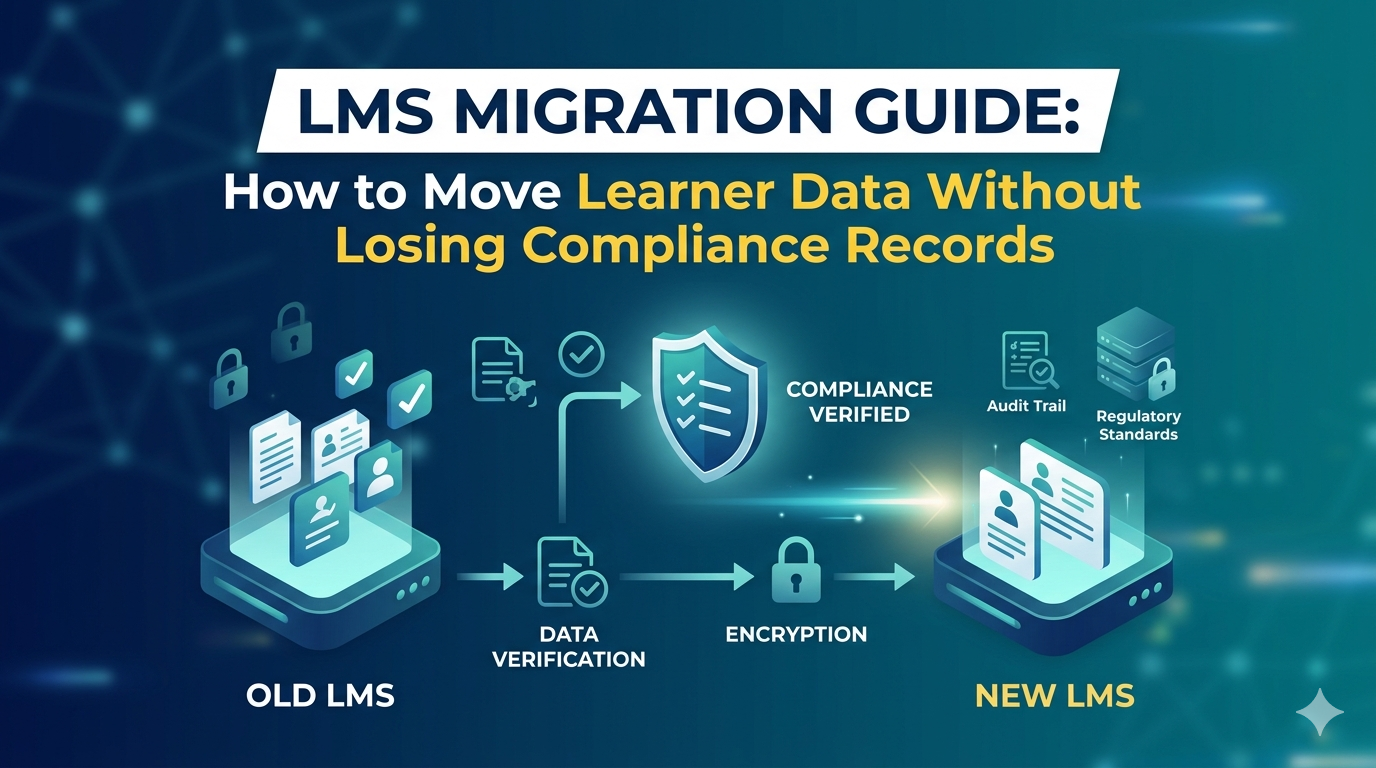
Switching your LMS is not like switching a project management tool. Learner data is not just records in a database.
It is proof.
Proof that an employee completed mandatory compliance training. That a nurse finished a required clinical course. That a sales team member passed a product certification.
When that data disappears or arrives corrupted in a new system, it does not just cause technical headaches. It can trigger compliance failures, put certifications at risk, and damage trust in your entire learning function.
The global LMS market is projected to exceed $28 billion by 2027, according to Mordor Intelligence. That growth means more organizations switching platforms every year. It also means more migrations done badly.
This guide covers every stage of an LMS migration in plain language: what learner data you actually have, how to export it safely, how to move it without corruption, how to protect compliance records, and what to do when something goes wrong.
Whether you are moving from Moodle to Docebo, from Cornerstone to Workday Learning, or from a custom-built platform to a commercial one, the principles are the same.
Table of Contents
What “Learner Data” Actually Means in an LMS Migration
Most people think learner data means usernames and passwords. It is much more than that. Understanding each type helps you plan which data needs special attention and which data is genuinely at risk.
Before you touch anything in your current LMS, you need to know exactly what you are working with.
The Five Categories of Learner Data You Need to Account For
User profile data is the simplest category to move. This includes names, email addresses, departments, job roles, and login credentials. Almost every LMS exports this as a CSV or JSON file. It is the safest data type in any migration.
Enrollment records show which courses each learner is currently enrolled in, which ones are in progress, and which ones are assigned but not yet started. This data connects users to courses. If your course structure changes in the new LMS, enrollment records may not map correctly without manual adjustment.
Completion and assessment records are the most critical category. These records show who completed what, when they completed it, and what score they received. For compliance training, these records are often the only evidence that a required course was done. Losing them can create serious regulatory risk.
SCORM and xAPI runtime data is the most complex. This type of data is often partially or fully lost in migrations, and that is expected rather than a sign that something went wrong. We explain exactly what this means in the next section.
Certificates and credentials are proof-of-completion documents issued by your current LMS. These files need to be archived separately before migration. The new LMS can issue new certificates going forward, but historical certificates from the old system need to be saved independently.
Which Learner Data Is Easy to Move and Which Is Not
Not all data migrates equally. Here is an honest breakdown:
| Data Type | Portability | Risk in Migration |
|---|---|---|
| User profiles | High | Low |
| Enrollment records | Medium | Medium |
| Completion records and scores | Medium to high | High |
| SCORM runtime / interaction data | Low | High |
| xAPI statements (with separate LRS) | High | Low |
| Certificates | Manual export required | High |
The most important insight: xAPI data stored in a dedicated Learning Record Store (LRS) is separate from the LMS and migrates easily. SCORM interaction data lives inside the LMS database and is the hardest to move cleanly.
SCORM, xAPI and AICC: What Actually Migrates in an LMS Data Migration
Many organizations are worried about their eLearning content and whether it will work in a new LMS. Course files are usually not the problem. Learner interaction history stored against those files is where the difficulty lies.
This section keeps the technical detail simple. Every term is explained.
SCORM Data: The Honest Picture
SCORM is the most widely used eLearning standard. SCORM courses come as .zip packages. These packages can be uploaded from one LMS to another. The course itself works fine in the new system.
What does not move is the runtime data stored against each learner’s history with the course. This includes: which slide they were on when they last left, how many attempts they made, answers to individual questions, and time-on-task data.
This information is stored inside your current LMS’s database in a format specific to that system. When you migrate, this detail is lost.
What you can preserve is the completion status (complete or incomplete) and the final score. For most organizations, this is sufficient.
For organizations subject to detailed audits where regulators may request interaction logs, this limitation needs to be documented in your compliance records before migration begins.
xAPI Data: The More Portable Standard
xAPI, sometimes called Tin Can API, is a newer eLearning standard that stores learner data in a Learning Record Store (LRS). An LRS is a separate database that sits outside the LMS entirely.
If your organization uses xAPI courses and has an LRS in place, your xAPI data is already outside the LMS. It stays in the LRS during migration.
The new LMS connects to the same LRS and can access all historical xAPI statements immediately. This is one of the strongest practical reasons to use xAPI for new content development. Future LMS migrations become significantly simpler.
AICC Courses
AICC is an older standard. Most organizations have replaced AICC content, but if you still have AICC courses, note that not all modern LMS platforms support AICC natively.
Check compatibility with your new LMS vendor before committing to a platform if you have AICC content you cannot yet replace.
The Pre-Migration Audit: The Step Most Teams Skip
Every LMS migration that has gone badly has one thing in common. The team did not know exactly what data they had before they started. They discovered problems mid-migration, under time pressure, with learners already waiting for access.
A pre-migration audit does two things. It shows you what data you actually have. And it surfaces problems in your existing data before they become migration problems.
How to Run a Data Audit in Your Current LMS
Start by pulling a full export of your current LMS in every format it supports. Most platforms offer CSV exports for users, enrollments, and completion records. Once you have these files, look for the following:
Duplicate user records. Learners who registered twice, or who have two accounts because their email address changed. Duplicates create problems in any migration. Merge or clean them in the source system first.
Orphaned enrollments. Courses that have enrollments but the course itself has been deleted. Or learners who are enrolled but have never accessed the course and likely never will. These need to be resolved before you start.
Incorrect completion statuses. Records that show “incomplete” because a SCORM package did not write the completion status correctly at the end of a session. These incorrect statuses will carry over to the new LMS unchanged unless you fix them first.
Missing course links. Completion records with no matching course in your current library. This happens when courses are deleted without archiving the completion history attached to them.
Cleaning your data in the source LMS is not exciting work. But a migration built on clean data takes weeks. A migration built on dirty data takes months.
Questions to Ask Your New LMS Vendor Before You Sign Anything
Most LMS vendors are good at selling features. They are less clear about migration complexity. Ask these specific questions before you commit:
What import formats does the new LMS accept for user records and completion history? Can it import completion records for courses that no longer exist in the course library?
What happens to SCORM runtime data that cannot transfer? How does it handle xAPI statements from an external LRS? Is there a professional services team for data migration, and what does that cost separately?
The answers tell you whether migration is a supported process at this vendor or something you will have to figure out yourself.
The LMS Migration Process: The Right Order of Operations
This is where most migrations go wrong. Not because of technical errors, but because steps are done in the wrong order. Here is the sequence that works. Do not skip steps or reorder them.
Step 1: Run the New LMS in Parallel – Do Not Shut Down the Old One First
Keep both systems running at the same time for at least four weeks. During this period, no new learners are added to the old LMS, but existing learners can still access their records and in-progress courses.
This is the single most important risk-reduction step in the entire migration. It gives you time to validate data, fix problems, and run a pilot before you commit. If something goes wrong, learners are not affected.
Step 2: Migrate User Accounts and Groups Before Anything Else
Set up the new LMS’s organizational structure first: departments, groups, roles, and permissions. Then import users. Then verify that every user account exists in the new system and belongs to the correct group before you move any course content or completion records.
Importing completion records into a system where the user accounts do not yet exist creates orphaned records that are very difficult to clean up later.
Step 3: Add Courses to the New LMS Before Importing Completion History
Upload your courses to the new LMS and give each one a stable identifier before you import any completion data. Your completion record import file will reference these course identifiers.
If you try to import completion records before the courses exist in the new system, the import will fail or create records that are not linked to any course.
Step 4: Import Completion Records and Validate Every Row
Import completion history for your most critical courses first: compliance training, certifications near their renewal date, and courses with the largest learner bases. Before running the full import, validate a sample of 50 to 100 learner records manually.
Validation means checking that the completion date, score, and status in the new LMS matches the source data exactly. Do this check before you tell anyone the migration is complete.
Step 5: Run a Pilot with One Team Before Full Cutover
Choose one department as your pilot group. Fully migrate their data to the new LMS and have them use it for two weeks. Collect feedback. Fix what is wrong. Then migrate everyone else.
The pilot group absorbs the problems so the rest of the organization does not have to experience them as their first impression of the new system.
We managed a migration for a healthcare organization with more than 12,000 learners moving from Moodle to Cornerstone OnDemand. Five years of compliance training records needed to transfer intact.
By running a pilot with the clinical operations team first, we caught a date format mismatch in the completion records that would have affected 4,300 records in the full migration. Fixing it in the pilot took one day. It would have taken two weeks to correct across the full dataset.
Protecting Certificates, Compliance Records and Audit Trails
For regulated industries – healthcare, finance, pharmaceuticals, manufacturing – learner data is not just an operational record. It is an audit trail that may be reviewed by external regulators years after the fact.
Handling this category of data carelessly is the most serious risk in any LMS migration.
How to Archive Certificates Before You Start the LMS Migration
If your current LMS generates certificates, export and archive every certificate issued to every learner before migration begins. Store these files in a location that is independent of both the old and new LMS – a shared document management system or a dedicated compliance archive.
Do not rely on regenerating historical certificates from the new LMS. New certificates will carry new issue dates. A certificate showing a 2021 completion with a 2026 issue date will raise questions in an audit. Archive the originals before you decommission the old system.
What Compliance Teams Actually Need From LMS Records
Compliance training records typically need to show: the learner’s full name and job role at the time of completion, the exact course title and version, the date of completion, and the score achieved.
Different regulations require different retention periods. Under FDA 21 CFR Part 11 in the US, records need to be retained for periods tied to product lifecycle. Under FCA training requirements in the UK, records are typically held for at least five years. Under OSHA, requirements vary by training type.
Your migration plan needs a clear written statement of how historical records will be maintained, in what format, and for how long, regardless of which LMS system holds them going forward.
When the LMS Migration Goes Wrong: Recovery and Rollback
Even well-planned migrations hit problems. The teams that recover quickly are the ones that planned for failure before it happened.
How to Build a Rollback Plan Before You Start
A rollback plan means that if the new LMS fails validation, you can return all affected learners to the old LMS within 24 hours. Three things make this possible: the old LMS must remain fully operational during the parallel running period; no data should be deleted from the old system until the new one is validated; and you need a clear, written trigger condition that activates the rollback.
“Something feels wrong” is not a trigger condition. “More than 5% of sampled completion records do not match source data” is. A rollback plan that exists only as a verbal agreement is not a rollback plan.
The Most Common LMS Migration Failures and How to Fix Them
Completion records that do not match any user account. This happens when the import file uses old email addresses that were updated during the user migration. Fix by joining both files on a stable user ID field rather than email before importing completion data.
Courses that reset learner progress. SCORM packages that were updated multiple times in the old LMS may have several versions. If the wrong version is uploaded to the new LMS, learners who were mid-course may be reset to the beginning. Always record which version of each SCORM package is the current production version before you export.
Certificate templates that do not match originals. If the new LMS produces certificates in a different format, learners who present their certificate to an employer or regulator may face questions. This is managed by archiving originals before migration and communicating the change to learners proactively.
LMS Migration Pre-Go-Live Checklist
Before you send any communication to learners saying the migration is complete, confirm every item below. Do this in a production mirror environment, not just in staging.
User accounts: Every active learner has an account in the new LMS. Every account is in the correct department and group.
Course library: Every current course is available in the new LMS and loads correctly. SCORM packages launch without errors.
Completion records: A sample of at least 100 learners has been manually validated. Completion dates, scores, and statuses match the source data.
Certificates: All historical certificates have been exported and archived in a system independent of both LMS platforms.
Compliance records: A compliance officer has reviewed the historical record set and confirmed it meets retention requirements.
Failure scenario tested: The integration between the new LMS and any connected HR system or SSO provider has been tested with a user created after go-live, not only before.
Rollback plan confirmed: The old LMS is still accessible. The rollback trigger condition is written down and agreed by the project owner.
Final Words – LMS Migration is a Data Project, Not an IT Ticket
An LMS migration succeeds when it is treated as a data project from the beginning. The people who need to be involved are not just IT.
They are the L&D managers who know which courses are compliance-critical. The HR team who owns the org structure data. The compliance officer who knows how long records must be kept.
The technical work of exporting, mapping, and importing data is straightforward once the data has been audited and the new system is set up in the right order.
What fails migrations is not the technology. It is assumptions about what data exists, what format it is in, and what it means.
If you move carefully, audit first, validate at every stage, and keep the old system running in parallel long enough to catch problems, an LMS migration does not have to be the organizational crisis that most teams expect it to be. It is a manageable project with a clear sequence and predictable risks.
Our data migration services team covers the full lifecycle from pre-migration audit through validation and go-live. For organizations building or rebuilding their learning infrastructure as part of a broader digital transformation, our education industry solutions page covers the full scope of what we support in the education and eLearning space.
Frequently Asked Questions About LMS Migration
How long does an LMS migration take?
A straightforward migration with fewer than 5,000 learners, a clean data set, and one or two years of history typically takes 6 to 10 weeks. Larger migrations with 10,000 or more learners, complex compliance record requirements, or significant data quality issues take 3 to 6 months. The data audit and cleanup phase is almost always longer than teams expect.
Can I migrate completion records from one LMS to another?
Yes, in most cases. Completion status, final score, and completion date can be migrated as a structured data import. Detailed SCORM interaction data – question-level responses, individual attempt logs, time-on-slide data – typically cannot be migrated because it is stored in a format specific to the source LMS. What you preserve is the summary record, not the session detail.
What happens to in-progress courses during LMS migration?
Learners who are mid-way through a SCORM course will lose their progress bookmark when they access the course in the new LMS. They will need to restart the course from the beginning unless your new LMS specifically supports importing SCORM progress states, which very few do. Plan for this by communicating to learners before go-live and setting clear expectations about restarting in-progress content.
Do I need a specialist to migrate LMS data, or can I do it myself?
Small migrations with a clean data set and a new LMS vendor that provides migration support can often be managed internally. Migrations involving compliance records, large learner populations, or complex org structures benefit significantly from specialist support. The cost of getting it wrong – a compliance gap, a failed audit, mass learner disruption – typically exceeds the cost of specialist help.
How do I communicate the LMS migration to learners?
Send a communication at least two weeks before go-live that explains why the system is changing, what learners need to do (if anything), whether their completion history will be available in the new system, and who to contact if something looks wrong. Learners who are not warned about a system change often assume their data has been deleted when they see a new interface. Set the expectation before they log in for the first time.